
Moving Office Computers: Label Cables Before You Unplug
October 11, 2026
Before unplugging an office computer, photograph the connections and label the leads at both ends. Those few minutes save a frustrating search for the right dock cable or screen adapter after delivery. Keep each desk’s kit together, even when several workstations look identical.
Give every workstation a short ID and a destination on the new floor plan. Use that ID on its equipment list, accessory pack and connection photographs. Your IT owner handles backups, shutdown and setup; the removal plan covers the physical collection and delivery tasks you have agreed.
1. Give every workstation an identifier and destination
Create a desk list before anyone unplugs equipment. Assign an identifier such as W01, W02 or W03, and record its current user, new desk position and the equipment travelling with it. Keep personal information in the controlled inventory rather than writing it unnecessarily on visible packaging.
List the computer, each screen, docking station, keyboard, mouse and any specialist peripherals. Record model details where they help distinguish power supplies or connections. Separate equipment going to a new user from equipment returning to the same person.
For example, W04 may include two screens and a laptop dock while W05 has one screen and a desktop computer. A generic carton label saying “IT” cannot tell the receiving team which combination belongs together.
2. Confirm data readiness and shutdown responsibility
Ask the IT owner to confirm what must be backed up, where the backup is held and whether recovery has been checked. The NCSC backup guidance recommends identifying important data and checking that backups can actually be restored. A transport inventory is not a substitute for that check.
Agree a shutdown window that staff understand. Record who is authorised to disconnect each system, and separate equipment that must remain in service until later. Staff should follow the organisation’s technical instructions rather than pulling plugs while work is still running.
Keep credentials out of carton labels and casual photographs. The person reconnecting systems should obtain access through the organisation’s approved process, not from passwords taped to a computer.

3. Photograph connections before removing cables
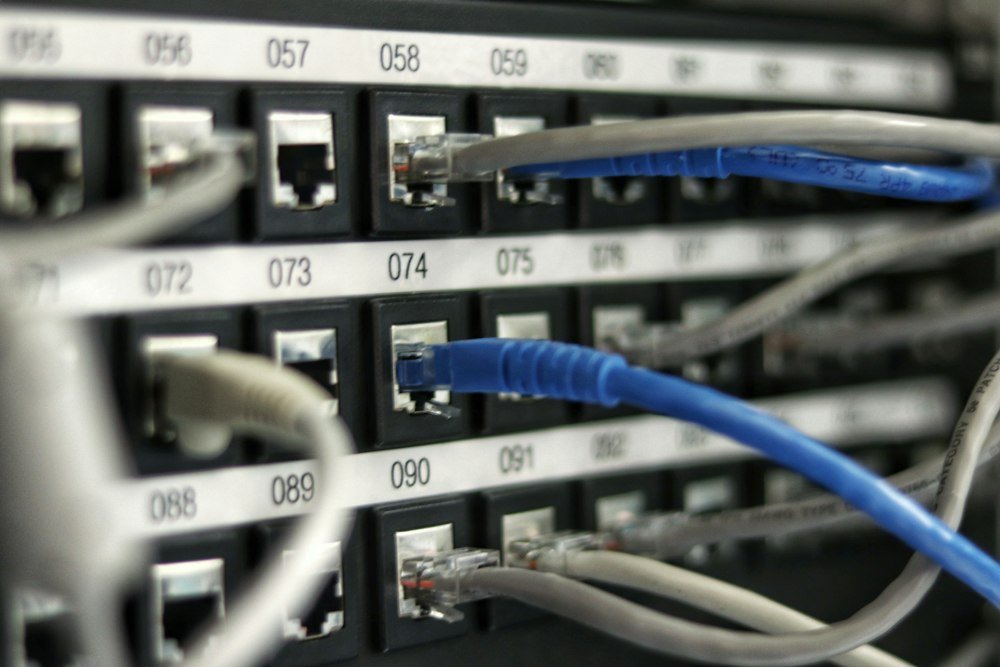
Take clear photographs of the connections and the overall desk arrangement. Make sure each picture can be matched to its workstation ID. A close-up with no identifying context can be surprisingly difficult to use when several identical computers arrive together.
Label both ends of removable leads with the workstation identifier and a useful connection description. Record the port used where that matters to the setup. London IT provider PC Macgicians’ office-move checklist recommends photographs and cable-end labels before disconnection.
A practical label might read “W04: dock to left monitor”. Use the equipment’s actual connections and avoid guessing from cable colour. If a lead is damaged or unidentified, ask the IT owner to resolve it instead of putting it into the general accessory box.
4. Build a matched accessory pack for each desk
Place approved accessories in a suitable labelled container linked to the workstation. Keep power supplies distinguishable and check model compatibility through the IT owner. Two chargers that look similar are not necessarily interchangeable.
Include the cable map or a reference to its controlled digital location. Separate shared equipment, such as a printer, from individual workstation packs and give it its own identifier and destination. This prevents a printer’s connection lead from disappearing into somebody’s desk bag.
Put the small adapters and wireless receivers on the desk inventory before packing them. A missing receiver can leave an otherwise intact keyboard unusable. Keep the correct power supply with the workstation ID and let your IT owner resolve anything unidentified. Use a separate container for stationery and liquids, so nobody has to unpack a monitor kit to find a pen or deal with a leaking bottle.
Workstation W01: keep equipment, cables and destination connected on paper
Inventory
Record the computer, screens, dock and accessories under one workstation ID.
Map
Photograph ports and label both cable ends before disconnection.
Pack
Use suitable protection and match accessory containers to the workstation.
Accept
The IT owner reconnects and tests the functions needed for work.
5. Agree equipment protection and transport scope
Check manufacturer handling guidance and identify suitable packaging before moving day. Screens need protection appropriate to their design, and equipment should not move loose inside oversized cartons. Describe unusual stands, fragile parts and specialist devices rather than treating them as standard desk items.
Ask who supplies protection and who packs, disconnects and reconnects the equipment. Confirm the responsibilities in the booking. ComfortVan lists office removals, but that does not by itself establish an IT configuration service or a particular equipment packaging method.
Keep the physical equipment list separate from the technical work list. One records what is being carried; the other identifies tasks such as configuring network access or testing a specialist application. A named owner should accept each list.
6. Prepare the new desks before equipment arrives
Make a destination plan showing workstation IDs on the new floor layout. Check desk positions, available power and the intended network arrangement with the IT owner. Account for building access and any room that cannot receive deliveries until another task is complete.
Clear a suitable receiving area and decide where sealed equipment packs will wait. Do not unpack everything into one shared pile. Place each workstation’s equipment and accessory pack together so the original inventory can be checked before installation.
If the office layout changes after packing, update the destination plan rather than writing conflicting instructions on cartons. A single current plan is easier for the receiving team to follow than several different versions.
7. Reconnect through the IT owner and test real work
Let authorised people perform reconnection and setup using the cable maps and technical plan. Inspect equipment before switching it on and raise any damage or missing-item concerns promptly. Do not force a connector or substitute an uncertain power supply to finish quickly.
Test the functions each workstation actually needs: both displays, approved network access, required applications and relevant shared devices. A browser opening one page does not demonstrate that the user can access a shared folder or print the document needed for work.
Record the result against the workstation ID. W04 might pass display and application checks but need a missing adapter replaced before acceptance. Keeping that distinction prevents a partially usable desk from being marked complete.
8. Reconcile the equipment and close outstanding issues
Compare the delivered inventory with the original desk list and note any authorised changes. Keep unmatched accessories in a controlled location until their ownership is resolved. Ask users to report specific symptoms against their workstation ID rather than sending vague messages about “the computer”.
Retain the setup records according to the organisation’s own process and protect any photographs that reveal sensitive information. Close the physical delivery record and technical acceptance record separately when their respective owners are satisfied.
Common mistakes to avoid
- Unplugging before photographing and labelling connections.
- Combining every desk’s leads in one unindexed carton.
- Assuming similar-looking power supplies are interchangeable.
- Writing credentials on packaging.
- Counting delivery as proof that the workstation is ready for work.
Final workstation checklist
- Equipment IDs and destination plan match.
- IT owner has confirmed data and shutdown arrangements.
- Connection photographs and both cable ends are labelled.
- Accessories and suitable protection are agreed.
- Delivery inventory and practical technical tests are recorded.
Frequently asked questions
Can staff pack their own desk equipment?
Only within the organisation’s approved plan and handling instructions. Allocate the task clearly so equipment is not disconnected twice or left unrecorded.
Does office removal include IT setup?
Check the specific scope. Physical transport and technical configuration require separate responsibility and should not be assumed to be the same service.
What should the enquiry include?
Send the equipment inventory, packing responsibilities, access information and delivery layout through the contact page.